AI Chat Assistant
Your CRM should answer questions, not just store data.
The Natural Language Interface
Traditional CRMs are menu-driven. You click Contacts, then filter, then search, then click into a record, then navigate to a tab. Every action is a sequence of clicks through a hierarchy someone else designed. It works, but it’s slow — especially when you know exactly what you want.
OpenVolo’s AI Chat Assistant flips this model. Press Cmd+K from any page and a conversational panel opens. Ask a question in plain English and the AI queries your CRM, runs tools, and returns structured answers. It’s the same Claude model that powers the agents, but wired directly to your CRM data for real-time, interactive use.
Opening the Assistant
The chat panel lives on the right side of every page. Open it three ways:
- Cmd+K (keyboard shortcut) — Toggle from anywhere
- Chat icon in the top-right navigation bar
- Smart prompt chips — Click a suggested action (these appear when you first open the panel)
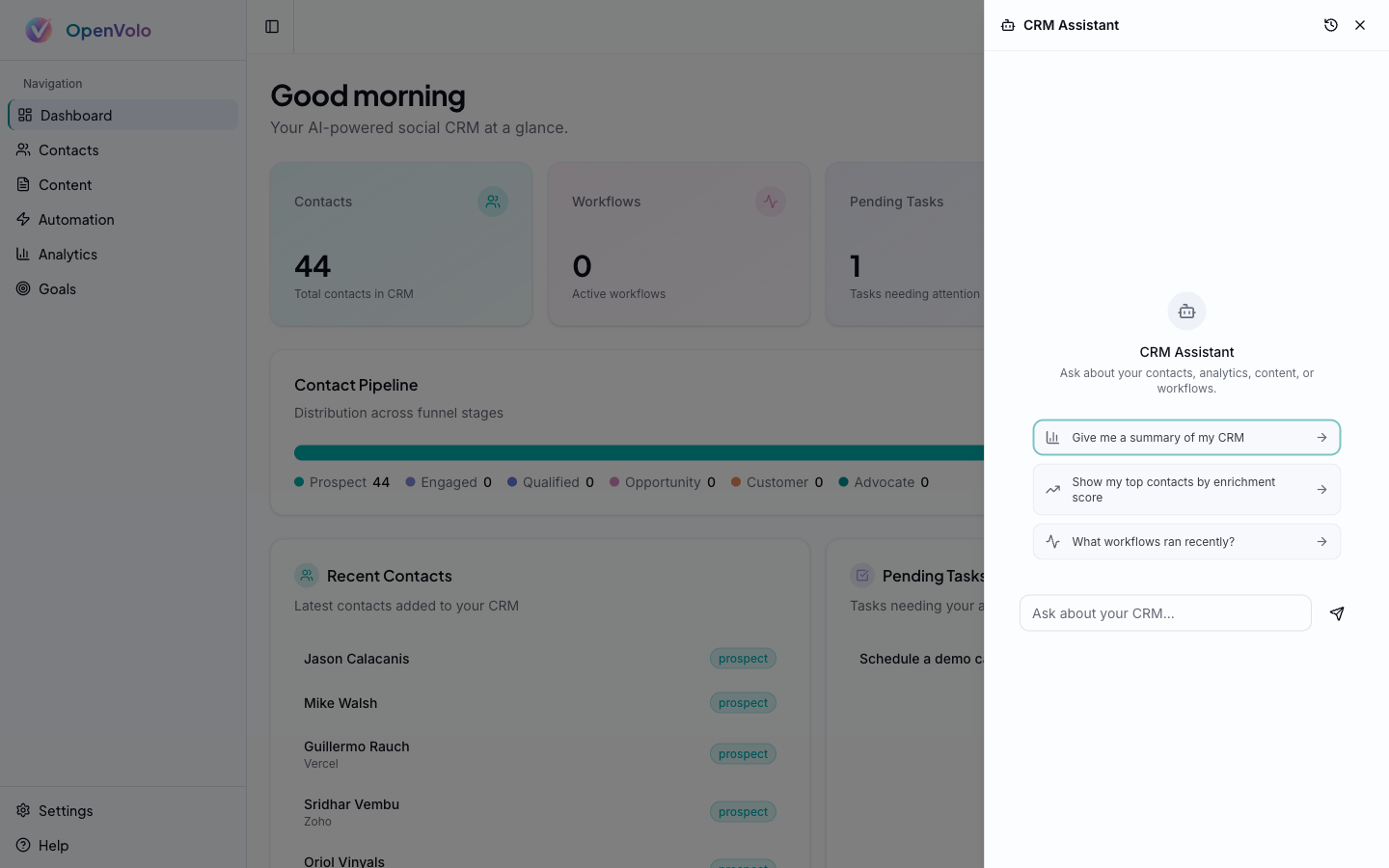 The CRM Assistant: smart prompts adapt to the current page. On the Dashboard, suggestions include “Give me a summary of my CRM,” “Show my top contacts by enrichment score,” and “What workflows ran recently?”
Smart Prompts
The suggestion chips at the top of the chat panel aren’t static. They change based on which page you’re viewing:
| Page | Example Smart Prompts |
|---|---|
| Dashboard | ”Give me a summary of my CRM”, “Show my top contacts by enrichment score” |
| Contacts | ”Find contacts at Google”, “Who has the lowest enrichment scores?” |
| Content | ”Show my recent drafts”, “How many posts did I publish this week?” |
| Automation | ”What workflows ran recently?”, “Start the enrich low-score agent” |
| Analytics | ”What’s my contact growth rate?”, “Show agent costs this month” |
| Goals | ”How is my lead gen goal progressing?”, “Which goals are behind schedule?” |
This context-awareness means the most useful actions are always one click away. But you can always type a completely custom question — the prompts are suggestions, not constraints.
What the Assistant Can Do
The chat assistant has access to 9 CRM tools that cover querying, creating, and taking action:
Query Tools
Ask questions and get structured answers from your CRM data.
- query_contacts — Search and filter contacts by name, company, stage, platform, or enrichment score. Returns formatted lists with key details.
- get_contact — Deep dive into a specific person. Returns their full profile, identities, tasks, and enrichment data.
- query_analytics — Pull analytics data — contact growth, agent performance, engagement metrics, content stats.
- query_workflows — Check workflow status, recent runs, success rates, and scheduled jobs.
- query_content — Browse your content library — drafts, published posts, by platform or date.
- query_goals — Check goal progress, linked workflows, and deadline status.
Create Tools
Add new data to your CRM through conversation.
- create_contact — Add a contact by describing them: “Add John Doe from Acme Corp, he’s the CTO, met him at a conference.”
- create_task — Create a task linked to a contact: “Remind me to follow up with Jane next Tuesday.”
Action Tools
Trigger workflows and operations.
- start_workflow — Launch any agent template: “Run the fintech leaders search” or “Start enriching my low-score contacts.”
Multi-Step Tool Chains
The assistant can chain multiple tools in a single conversation turn. Ask “Show me my top 5 contacts by enrichment score and start enriching the ones below 50” and it will:
- Call
query_contactsto find top contacts sorted by enrichment - Identify those below the threshold
- Call
start_workflowto trigger the enrichment agent
The system bounds these chains to 5 steps per turn to prevent runaway loops, but that’s typically more than enough for practical queries.
Conversation History
The assistant remembers your conversations and lets you save, continue, and search them.
Toolbar Controls
The chat panel toolbar (top right) includes:
- Save — Persist the current conversation for later
- New (SquarePen icon) — Start a fresh conversation
- History (clock icon) — Browse saved conversations
- Close (X) — Dismiss the panel
Saving and Continuing
When you save a conversation, the full message history (including tool calls and results) is stored in your local SQLite database. Click History to see all saved conversations in a searchable list. Click any conversation to reload it — the chat picks up exactly where you left off, with full context intact.
This is particularly useful for ongoing threads: “Show me the contacts we discussed yesterday” works because the assistant has the full prior conversation loaded.
Searching History
The history view includes a search bar for finding past conversations by content. Looking for that time you asked about fintech contacts? Search “fintech” and the matching conversations surface instantly.
Practical Patterns
Here are conversation patterns that work well:
“Give me a summary of my CRM — new contacts this week, active workflows, and pending tasks.”
One message replaces five minutes of clicking through tabs. The assistant calls multiple tools and returns a structured briefing.
“Tell me everything about Jason Calacanis — his profile, tasks, and our content that mentions him.”
Assembles a pre-meeting dossier by calling get_contact and query_content.
“Add Sarah Chen — VP Engineering at Stripe, met her at the AI meetup. She’s on X as @sarahchen.”
Calls create_contact with all details. Faster than navigating to Contacts → Add Contact → filling the form.
“Run the prune agent and start the thought leadership content agent.”
Calls start_workflow twice. Monitor progress from Automation or ask the assistant later.
The Full Circle
Every feature described in every guide in this series — contacts, content, publishing, agents, analytics, goals — is accessible through the chat assistant. The assistant is the universal interface that wraps the entire CRM.
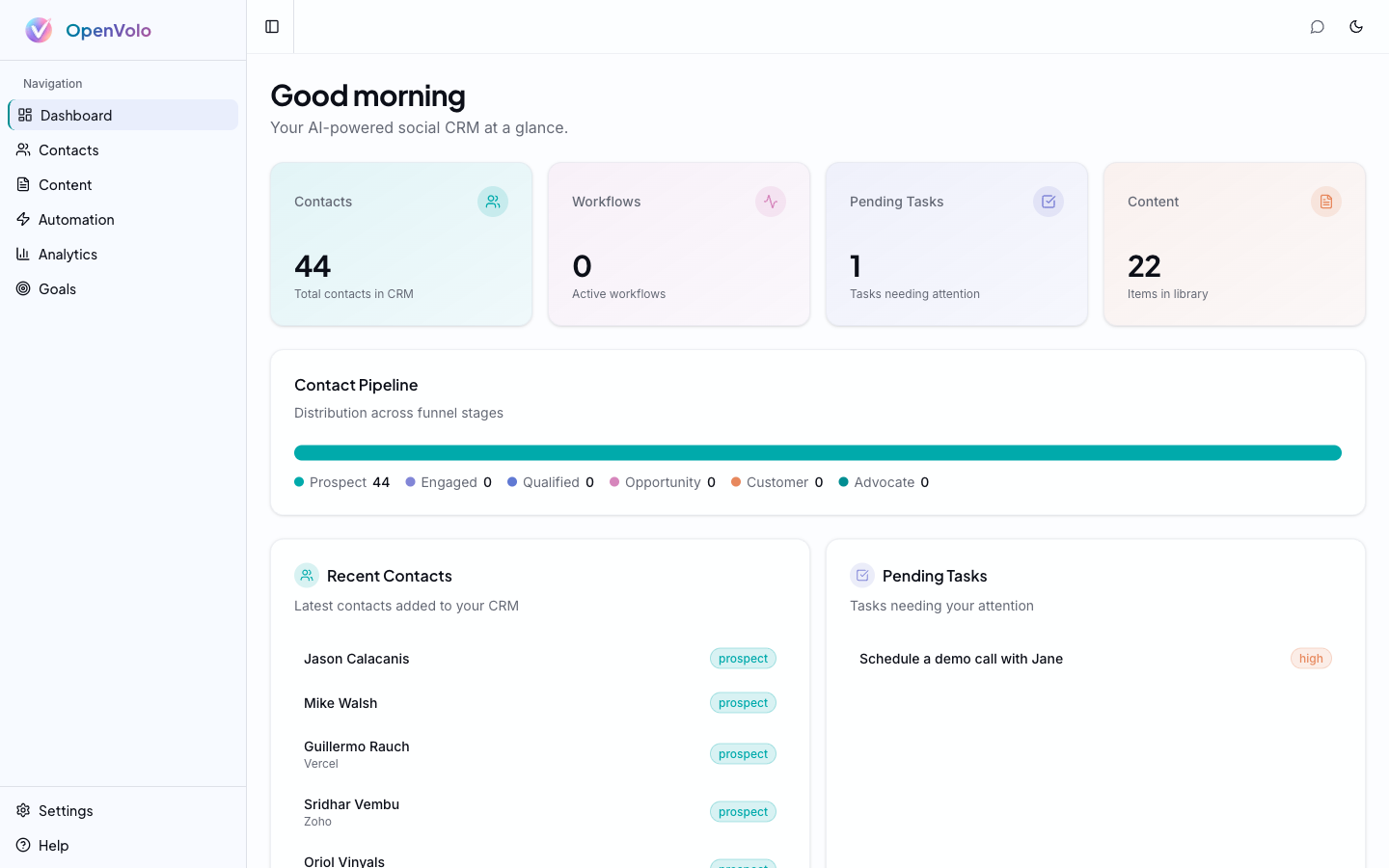 The Dashboard and CRM Assistant together: visual overview on the left, conversational interface on the right. Two ways to interact with the same system.
This is what an AI-native CRM looks like. The traditional UI exists for visual overview and direct manipulation. The chat exists for speed, natural language queries, and actions that would take multiple clicks to accomplish through menus. Use whichever fits the moment — or both at once.
Guide Directory
You’ve reached the end of the OpenVolo User Guide series. Here’s the full set for reference:
- Getting Started — Installation, API keys, platform connections
- Contacts and Enrichment — Multi-platform contacts and AI enrichment
- Content and Publishing — Content library, AI writing, browser publishing
- AI Agents and Automation — Agent gallery, execution, scheduling
- Analytics and Goals — Dashboard analytics and demand generation goals
- AI Chat Assistant — Natural language CRM interface (you are here)
Back to: OpenVolo User Guide